
What does KLD stand for in packaging?
KLD in packaging stands for key line diagram.
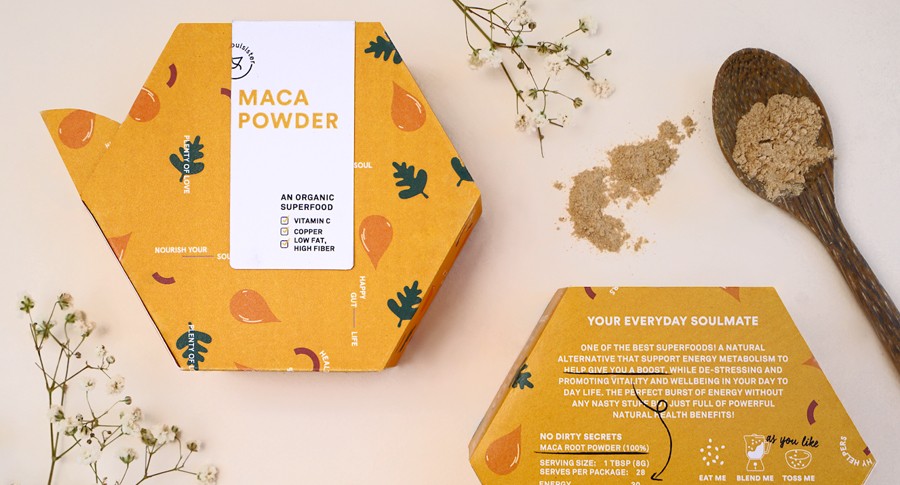
It is the flat drawing a box or pack is cut and folded from.
It is also called a dieline, and in packaging the two words mean the same thing.
The four lines on a KLD at a glance
| Line | What it marks | What to keep in mind |
| Cut line | The path the box is cut along | Your page describes it as solid red, 0.25 or 0.5 pt. Present that as a common convention and tell readers to check their printer’s. |
| Fold line | Where the panels fold | Keep text and graphics off it. Check orientation on a paper mock-up. |
| Bleed | The printed edge beyond the cut line that gets trimmed off | Run background colour and images to the bleed so no white edge shows. |
| Safe zone | A dotted line inside the cut line | Keep branding, product name and readable text inside it. |
How to Make a KLD: Step-by-Step
- Measure a real box: Unfold the box, flatten it and measure every panel, tab and flap. Note where the glue seam and tuck tabs sit. Those measurements are the base for your drawing.
- Draw the dieline on its own layer: Keep the dieline vector paths clean and organized.
- Build a paper mock-up: Print the design, then cut, fold and tape it together to check orientation, text placement and measurements before the print run.
- Send it to your printer for a proof: Send the file to a plotting machine or your printer to get a quick physical sample and verify all creases and cuts.
The two file-setup mistakes I see most
The cut line is not set as a spot colour
The mistake I see most is a cut line that is not set as a spot colour.
A spot colour keeps the cut line on its own separation, so it stays apart from the printed artwork and is clearly marked as a cutting path.
Give it a clear name, and ask your printer which name they use.
Dieline and artwork are on the wrong layers
The second mistake is artwork and dieline on the wrong layers.
Keep the dieline on its own layer, above the artwork layer, and lock it once the lines are right.
Don’t build a dieline in Photoshop
Don’t build a dieline in Photoshop.
Photoshop works in pixels, so lines go soft or jagged when you scale them.
Vector software such as Illustrator keeps every line exact at any size.
Before you start, ask your printer for their file requirements
File requirements differ from one printer to the next.
Before you build the file, ask your printer what they need: the file format, how cut and crease lines must be set up, whether fonts must be outlined, and which colour mode to use.
Frequently Asked Questions
What does KLD stand for in packaging?
Key line diagram. It is also called a dieline.
Is a KLD the same as a dieline?
Yes. In packaging the two words mean the same thing: the flat drawing a box is cut and folded from.
What is the most common mistake in a KLD or dieline file?
Two come up most often: the cut line is not set as a spot colour, and artwork and dieline are on the wrong layers.
How do I make a KLD from an existing box?
Unfold the box, flatten it and measure every panel, tab and flap. Note where the glue seam and tuck tabs sit. Those measurements are the base for your drawing.
Do I need a paper mock-up before printing?
Yes. Print the design, then cut, fold and tape it together to check orientation, text placement and measurements before the print run.
Can I make a KLD in Photoshop?
It is not a good idea. Photoshop works in pixels, and a dieline needs vector lines that stay exact at any size. Use vector software such as Illustrator.
What file settings does my printer need?
It depends on the printer. Ask for their requirements before you start: file format, cut and crease line setup, outlined fonts and colour mode.